
Organization Connect lets a Microsoft 365 admin grant ColdSend access to all (or scoped) mailboxes in your tenant with a single consent action. After setup, team members can bulk import Outlook mailboxes via CSV — no individual sign-ins or passwords required.
When to Use Organization Connect
Use this option if you:
- Need to import many Outlook/Microsoft 365 mailboxes at once (10+)
- Are a Microsoft 365 tenant admin (or can get your admin to approve)
- Want to avoid clicking through individual OAuth consent for each mailbox
- Need a scalable solution for onboarding organization email accounts
For individual accounts: If you only need to connect 1-5 accounts, use the standard Shared OAuth or Private OAuth method instead.
Prerequisites
- A Microsoft 365 tenant with admin access (Global Admin or Exchange Admin)
- An Azure account with permission to register applications (create free account)
- A ColdSend account with team owner permissions
- Exchange Online PowerShell access (for service principal registration)
Step 1: Register Azure App with Application Permissions
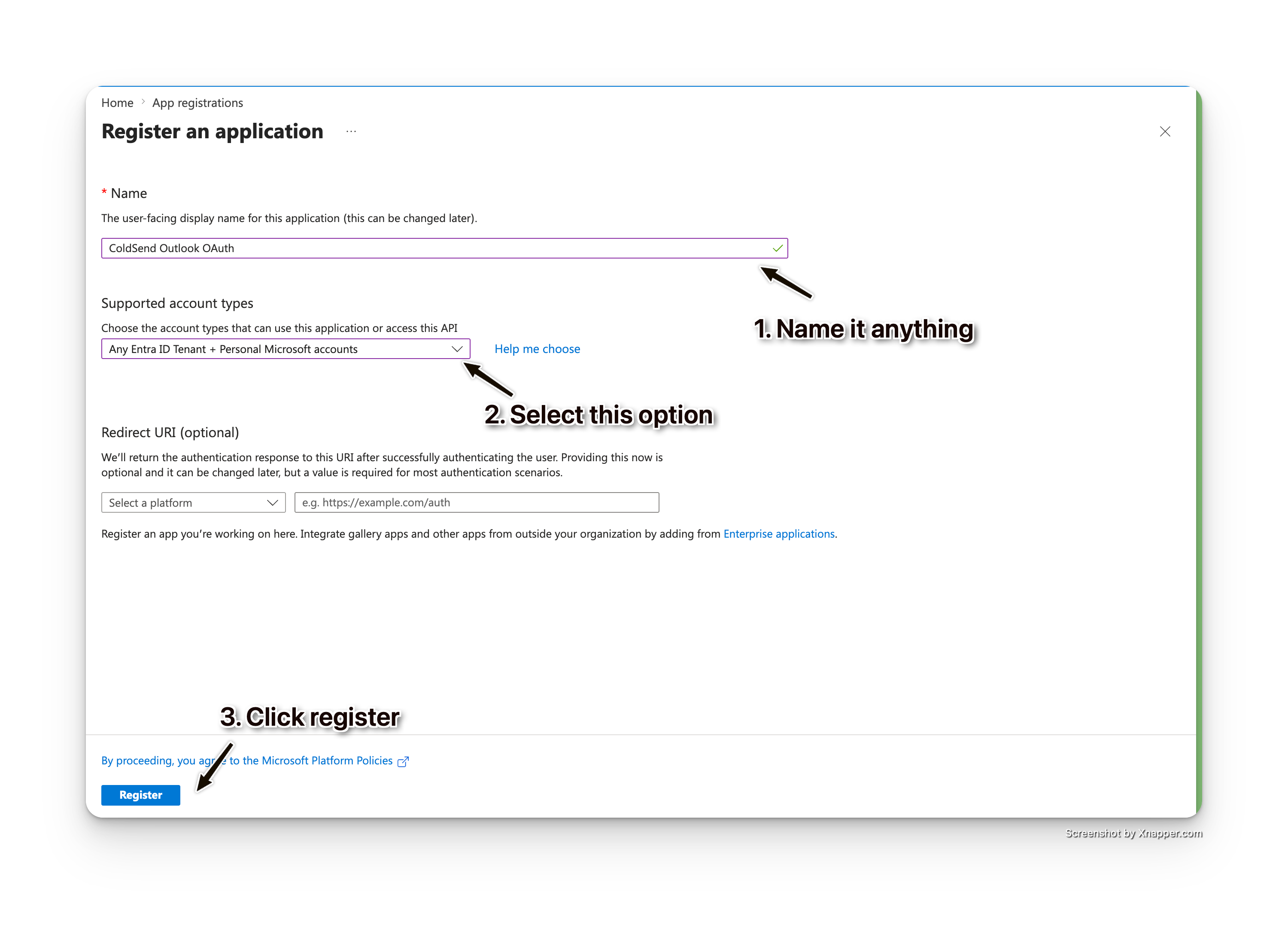
- Go to the Azure Portal > App registrations > + New registration
- Fill in:
- Name:
ColdSend Org Connect(or your preferred name) - Supported account types: Select Single tenant (your organization only)
- Name:
- Click Register
Add API Permissions
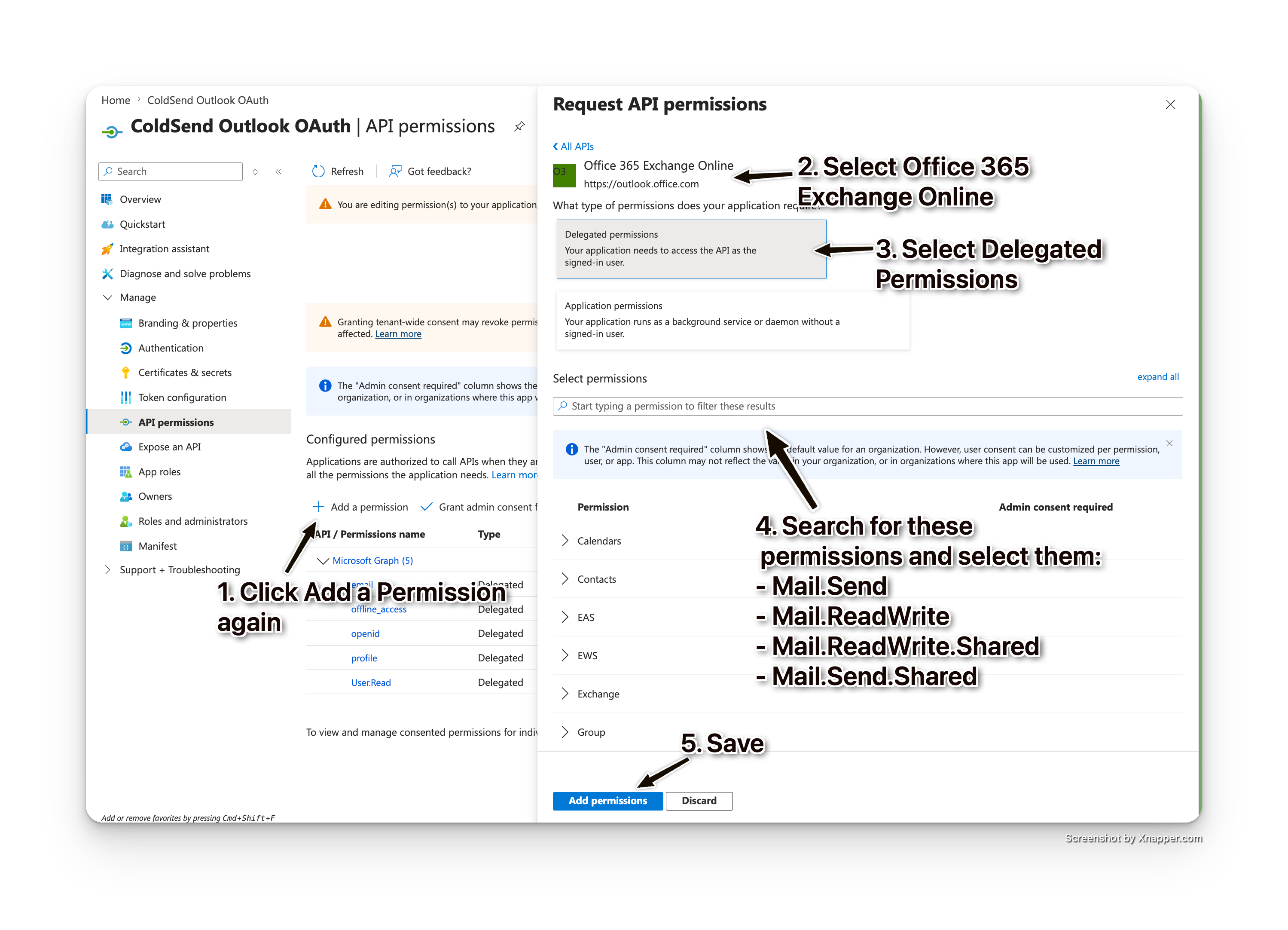
- Go to API permissions > + Add a permission
- Select APIs my organization uses > search Office 365 Exchange Online
- Choose Application permissions
- Add these two permissions:
| Permission | Purpose |
|---|---|
SMTP.SendAsApp |
Send email via SMTP on behalf of any user |
IMAP.AccessAsApp |
Read mailbox via IMAP for reply tracking |
- Click Grant admin consent for [Your Organization] and confirm
Generate Client Secret
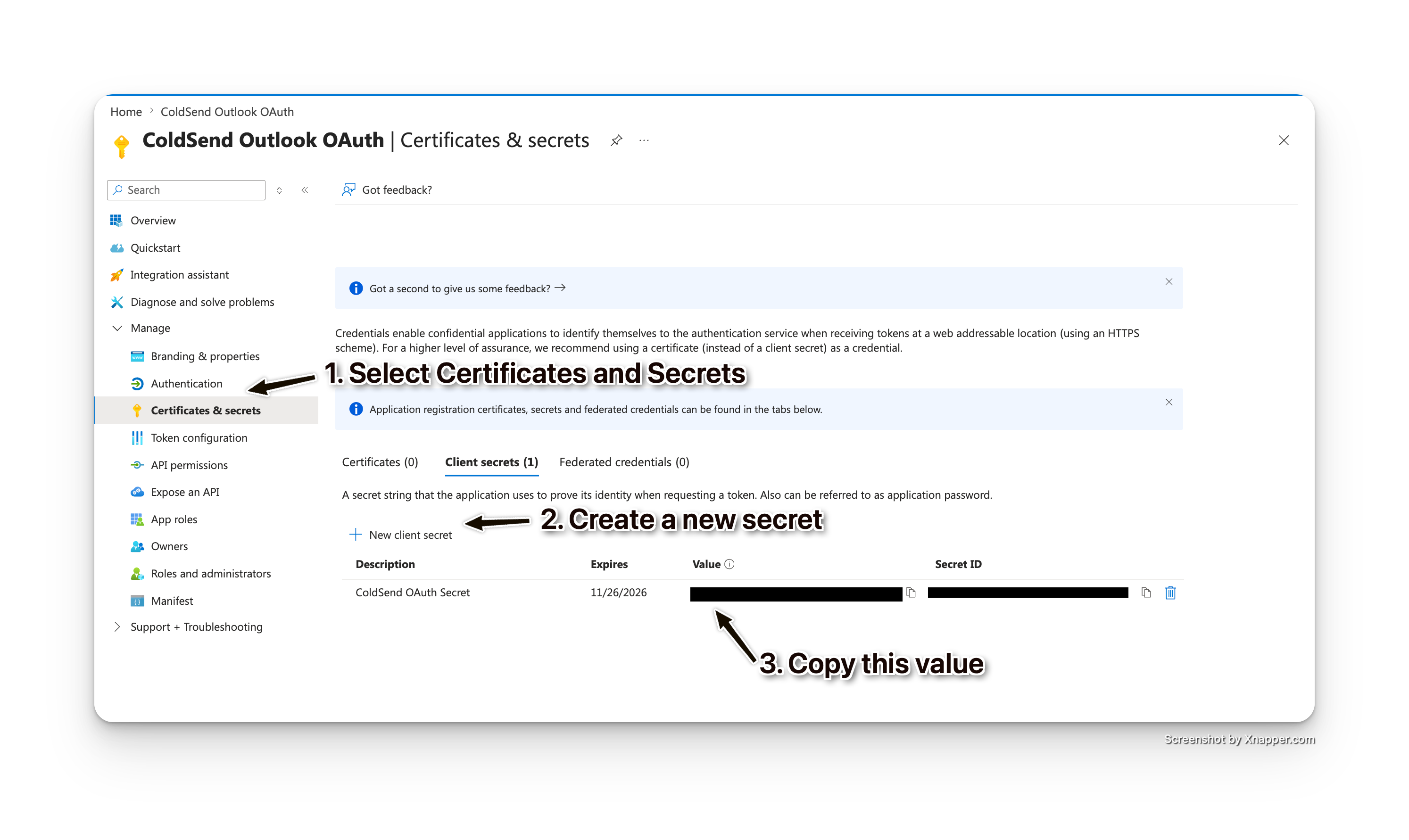
- Go to Certificates & secrets > + New client secret
- Set expiration (recommended: 180 days)
- Copy the secret Value immediately (you won't see it again)
You now have:
- Application (client) ID — from the Overview page
- Client Secret Value — just copied
Step 2: Register Service Principal in Exchange Online
Microsoft requires registering the app as a service principal in Exchange Online for SMTP/IMAP access.
Open Exchange Online PowerShell and run:
# Connect to Exchange Online
Connect-ExchangeOnline

# Get your app's service principal Object ID from Azure AD
# (find it in Azure Portal > Enterprise Applications > search your app name)
$ServicePrincipalObjectId = "YOUR_SERVICE_PRINCIPAL_OBJECT_ID"

# Register the service principal for Exchange access
New-ServicePrincipal -AppId "YOUR_CLIENT_ID" -ServiceId $ServicePrincipalObjectId -Organization "YOUR_TENANT_ID"
Where to find the Service Principal Object ID: Azure Portal > Microsoft Entra ID > Enterprise Applications > search your app name > copy the Object ID.
Step 3: (Optional) Scope Access with Application Access Policy
By default, the app can access all mailboxes in your tenant. To restrict it:
# Create a mail-enabled security group in Microsoft 365 Admin Center
# Add only the mailboxes you want ColdSend to access to this group

# Then create the access policy
New-ApplicationAccessPolicy `
  -AppId "YOUR_CLIENT_ID" `
  -PolicyScopeGroupId "sales-outreach@yourcompany.com" `
  -AccessRight RestrictAccess `
  -Description "Restrict ColdSend to sales outreach mailboxes only"
This is recommended for enterprise security compliance but not required.
Step 4: Configure in ColdSend
- Log into ColdSend > Sender Accounts > Microsoft Outlook
- Click the Organization tab
- Click Add Azure App Configuration
- Enter:
- Application Name: A friendly name (e.g., "Sales Team Org Connect")
- Client ID: Your Azure app's Application (client) ID
- Client Secret: The secret value from Step 1
- Click Save & Continue
Step 5: Grant Admin Consent
- After saving, click Grant Admin Consent
- You'll be redirected to Microsoft's admin consent page
- Sign in with your tenant admin account
- Review the permissions and click Accept
- Microsoft redirects back to ColdSend with consent confirmation
- Status changes to Consented
Troubleshooting: If consent fails, verify:
- You signed in with a Global Admin or Exchange Admin account
- The app has the correct Application permissions (not Delegated)
- Admin consent was granted in Azure (Step 1)
Step 6: Verify Connection
- Click Test Connection on your organization connection card
- ColdSend will attempt to acquire a token via client credentials
- If successful, you'll see "Connection Test Passed"
If the test fails, ensure the Exchange Online service principal (Step 2) was created correctly.
Step 7: Bulk Import Mailboxes
- With a consented connection active, the bulk import area appears
- Prepare a CSV file with columns:
email_address,display_name,daily_limit
john@yourcompany.com,John Doe,100
jane@yourcompany.com,Jane Smith,50
marketing@yourcompany.com,Marketing Team,30
- Upload the CSV (drag-and-drop or click to browse)
- Review the preview and validation results
- Click Upload to start the import
- ColdSend tests SMTP/IMAP connectivity for each mailbox in the background
- Track progress in real-time — successful mailboxes are activated immediately
How It Works Behind the Scenes
- Token acquisition: ColdSend uses the
client_credentialsOAuth2 grant to get app-level access tokens (no user interaction) - SMTP sending: Uses XOAUTH2 authentication with the app token and target user's email:
AUTH XOAUTH2 user=john@company.com\x01auth=Bearer {token}\x01\x01 - IMAP monitoring: Same XOAUTH2 mechanism for reply tracking
- Token refresh: App tokens expire in ~1 hour; ColdSend acquires fresh tokens on demand via client credentials (no stored refresh tokens per inbox)
- Security: Client secrets are encrypted at rest; tokens are never stored permanently
Troubleshooting
"Admin consent was denied"
- Verify you're signing in with a Global Admin or Exchange Admin account
- Check if your organization has policies blocking third-party app consent
"Test Connection failed"
- Ensure the Exchange Online service principal was registered (Step 2)
- Wait 5-10 minutes after Step 2 for propagation
- Verify the client secret hasn't expired
"SMTP/IMAP test failed for specific mailbox"
- The mailbox may not be in the scoped security group (if using Application Access Policy)
- The mailbox may be disabled or not licensed for Exchange Online
- Shared mailboxes may have SMTP authentication disabled
"Client credentials token acquisition failed"
- The client secret may have expired — generate a new one in Azure and update in ColdSend
- Admin consent may have been revoked — re-grant consent
FAQs
Does this work with personal Outlook.com accounts? No. Organization Connect only works with Microsoft 365 business/enterprise tenants. For personal accounts, use Shared OAuth.
Can I connect mailboxes from multiple tenants? Yes. Create a separate Organization Connection for each Microsoft 365 tenant.
What happens if the client secret expires? Existing inbox connections continue working with cached tokens for up to 1 hour. After that, update the client secret in ColdSend to restore access.
Is my organization's data safe? ColdSend only accesses SMTP (for sending) and IMAP (for reply tracking). We don't read or store email content beyond tracking campaign replies. All credentials are encrypted at rest.
Can I remove individual mailboxes after bulk import? Yes. Each imported mailbox appears as a regular inbox in your account and can be individually disconnected.
Do I need to re-consent when adding more mailboxes? No. Once admin consent is granted, you can import additional mailboxes at any time without re-authorization (as long as they're in the tenant or scoped group).
 1 min read
 Apr 23, 2026