
How to Configure Instantly Campaign Settings for ColdSend Inboxes
ColdSend inboxes are powered by Azure Communication Services (ACS), which enforces a hard limit of 100 emails per hour per domain. This limit is shared across every platform sending from that domain — including ColdSend itself.
If you exceed this limit, emails are hard rejected (not queued). This guide shows you exactly what values to set in Instantly's campaign settings to stay within the quota.
Prerequisite: This guide assumes you've already connected your ColdSend inboxes in Instantly. If you haven't, follow this guide first: How to Export Inboxes from ColdSend and Connect Them in Instantly
Understand the Domain Quota
Before setting your campaign values, you need to understand three things:
- The limit is per domain, not per inbox. Whether you have 1 inbox or 100 on the same domain, the combined sending across all of them cannot exceed 100 emails per hour.
- The limit is shared across platforms. If ColdSend is also sending emails (campaigns, warmup) on the same domain, those emails count toward the same 100/hour pool.
- Exceeding the limit causes hard rejections. Emails that go over the quota are not queued or retried — they simply fail.
Which Case Applies to You?
Choose the case that matches your setup:
Case A: Instantly Only
Use this case when your ColdSend inboxes are connected in Instantly but you are not actively sending campaigns or running warmup from ColdSend on the same domain.
Your full domain quota of 100 emails/hour is available for Instantly.
The Formula
Gap per inbox (seconds) = (Number of active inboxes × 3600) ÷ 100
Daily limit per inbox     = (100 ÷ Number of active inboxes) × Sending hours
Quick Reference Table
How to Apply
- Count how many inboxes from the same domain are active in your Instantly campaign.
- Find the matching row in the table above.
- In Instantly, open your campaign settings and set:
- Daily limit per campaign — use the value from the table (adjust for your sending hours)
- Gap between emails — use the value from the table
- If your inbox count falls between two rows, use the higher gap (more conservative).
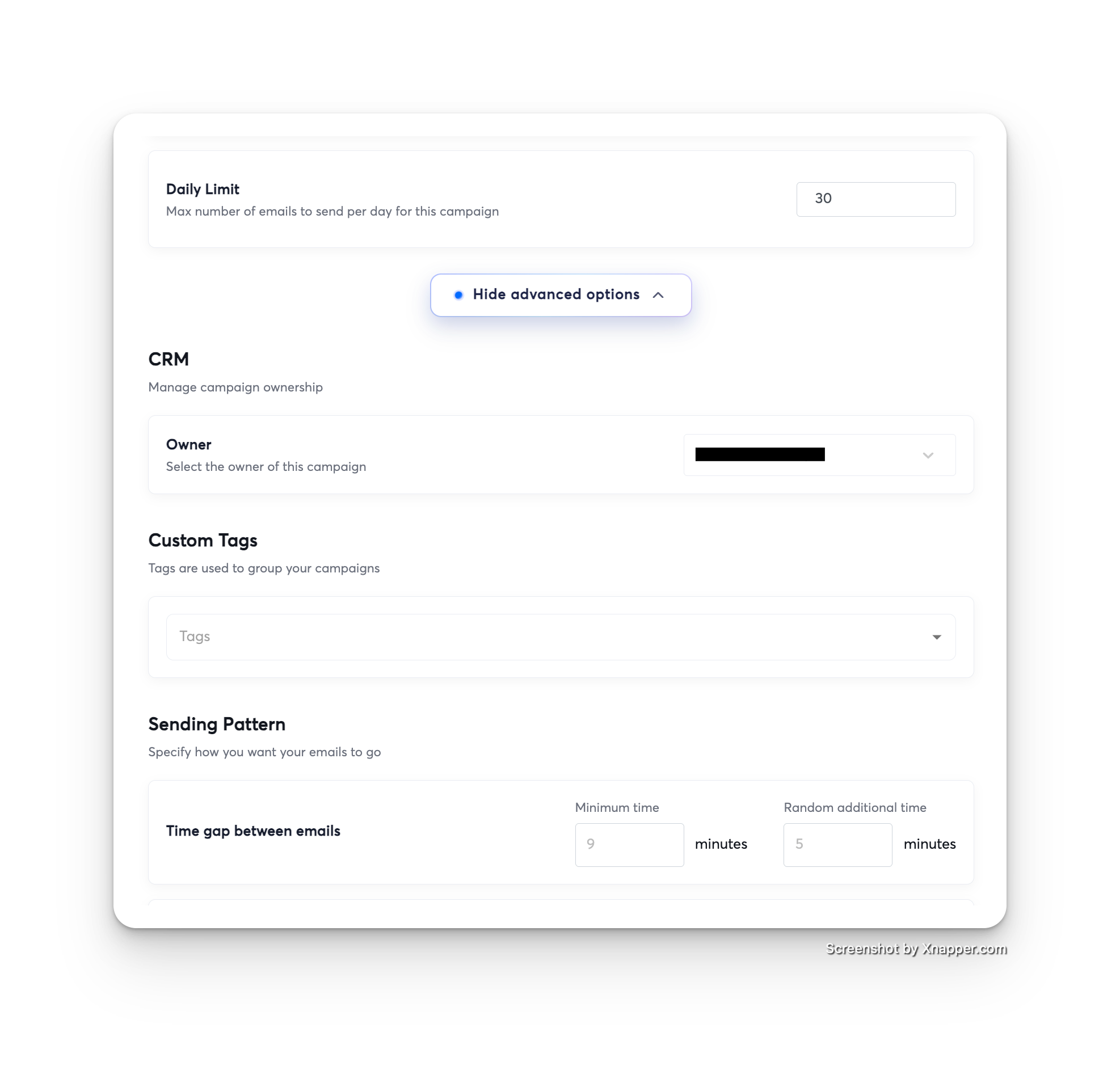 Instantly Campaign Settings
Case B: ColdSend + Instantly
Use this case when you're actively running campaigns or warmup in ColdSend and sending from Instantly on the same domain.
Your domain quota of 100 emails/hour must be split between ColdSend and Instantly.
Step 1: Estimate ColdSend's Hourly Usage
Check how many emails per hour ColdSend is sending on the domain. This includes:
- Active campaigns — check your campaign's sending rate in ColdSend
- Warmup emails — each inbox in warmup sends a small number of emails per hour
Tip: A rough estimate is fine. If you have 20 inboxes in warmup with a warmup limit of 2/day each, that's roughly 40 emails spread across the day — about 2–3 per hour. Active campaigns are easier to estimate from the daily limit divided by sending hours.
Let's call this number S (ColdSend emails per hour).
Step 2: Calculate Your Remaining Budget
Remaining budget (R) = 100 − S
Example: If ColdSend is sending ~20 emails/hour, your remaining budget for Instantly is 80 emails/hour.
Step 3: Apply the Formula
Gap per inbox (seconds) = (Number of active inboxes × 3600) ÷ R
Daily limit per inbox     = (R ÷ Number of active inboxes) × Sending hours
Quick Reference Tables
If ColdSend uses ~20 emails/hour (R = 80):
If ColdSend uses ~40 emails/hour (R = 60):
If ColdSend uses ~60 emails/hour (R = 40):
General Formula (Custom Values)
If your setup doesn't match the tables above, use this formula directly:
Inputs:
- N = number of inboxes from the domain active in Instantly
- S = emails per hour ColdSend is sending on the same domain (0 if not using ColdSend)
- R = 100 − S (remaining hourly budget for Instantly)
- H = number of hours per day your campaigns will be active
Outputs:
- Gap between emails = (N × 3600) ÷ R seconds
- Daily limit per inbox = (R ÷ N) × H
Important: Always round the gap up and the daily limit down to stay safely under the quota.
Setting Values in Instantly
- Open your campaign in Instantly.
- Go to Campaign Settings.
- Find these two fields:
- Daily Limit — the maximum number of emails this campaign will send per inbox per day
- Gap Between Emails — the minimum time between consecutive emails from the same inbox
- Enter the values from the tables or formula above.
- Save your campaign.
If you're running multiple campaigns using the same domain's inboxes, the combined volume across all campaigns counts toward the domain quota. Make sure the total doesn't exceed R.
Common Mistakes to Avoid
Setting the Same Gap for All Inboxes Without Counting
The most common mistake is setting a 45-second gap on every inbox, assuming each has its own limit. With 100 inboxes on a domain, a 45-second gap would attempt ~8,000 emails per hour — far above the 100/hour limit.
Forgetting ColdSend's Own Sending
If ColdSend is actively sending campaigns or warmup on the same domain, those emails count. Ignoring this will cause rejections even if your Instantly settings look correct on their own.
Running Multiple Instantly Campaigns on the Same Domain
If you have two or more Instantly campaigns using inboxes from the same domain, each campaign draws from the same 100/hour pool. Add up the hourly throughput of all campaigns and make sure the total stays under R.
Not Adjusting When Adding More Inboxes
If you add more inboxes to your campaign later, you must increase the gap and decrease the daily limit accordingly. The quota doesn't grow with more inboxes — it's fixed per domain.
Troubleshooting
Emails Are Being Hard Rejected
- Verify your gap and daily limit match the formulas above
- Check if ColdSend is sending more than you estimated — look at your ColdSend campaign stats for the domain
- Count the actual number of active inboxes on the domain in Instantly (some may have been added to campaigns without your noticing)
Sending Feels Too Slow
This is expected with a shared domain quota. To increase throughput:
- Use more domains — spread your inboxes across multiple sending domains, each with its own 100/hour quota
- Reduce ColdSend's usage — pause warmup or lower campaign volume in ColdSend to free up budget for Instantly
- Run fewer inboxes at a time — use a subset of your inboxes in Instantly and rotate them
Some Inboxes Send Fine but Others Don't
- Check if all inboxes are on the same domain — if some are on different domains, they have separate quotas
- Verify no inbox has been disconnected or has invalid credentials in Instantly
Still Need Help?
Contact ColdSend support at support@coldsend.pro or join our Discord server — we're happy to help you troubleshoot your setup.
FAQs
What happens if I set the gap too low?
Your domain will exceed the 100 emails/hour limit and ACS will hard reject the excess emails. These emails are not retried — they're lost. Always err on the side of a higher gap.
Can I use all 100 inboxes from my domain in Instantly?
Yes, but each inbox will only send about 1 email per hour (or less if ColdSend is also sending). This works for large lead lists where you don't need high throughput per inbox.
Does warmup in Instantly count toward the domain limit?
Yes. Any email sent through the inbox — whether it's a campaign email, a warmup email, or a follow-up — counts toward the 100/hour domain quota. If Instantly's warmup is running alongside campaigns, factor that into your S value.
How do I know how many emails ColdSend is sending per hour?
Check your ColdSend campaign settings for the daily limit and sending window. Divide the daily limit by the number of sending hours to get the hourly rate. Add any warmup volume on top.
Can I run campaigns on ColdSend and Instantly at the same time?
Yes, as long as the combined hourly volume across both platforms stays under 100 emails per domain. Use Case B above to calculate the correct split.
What if I have inboxes on multiple domains?
Each domain has its own independent 100/hour quota. Apply the formula separately for each domain.

