
How to Export Inboxes from ColdSend and Connect Them in Smartlead
This guide walks you through exporting your connected inboxes from ColdSend as a CSV file and bulk importing them into Smartlead. This is useful if you're migrating your email infrastructure to Smartlead or running campaigns across both platforms.
When to Use This
Use this workflow if you:
- Want to migrate inboxes from ColdSend to Smartlead
- Need to run the same inboxes on both platforms simultaneously
- Are consolidating your outbound email operations
- Want to bulk import dozens or hundreds of inboxes into Smartlead without manual setup
Prerequisites
- A ColdSend account with connected inboxes (Sender Accounts)
- A Smartlead account with access to the Email Accounts section
- A CSV-compatible spreadsheet viewer (optional, for reviewing the exported file)
Step 1: Select Inboxes in ColdSend
-
Log into your ColdSend account.
-
In the left sidebar, go to Sender Accounts.
-
Locate the domain whose inboxes you want to export.
-
Click the select all checkbox at the top of the list to select all inboxes for that domain.
You can also manually select individual inboxes if you only want to export a subset.
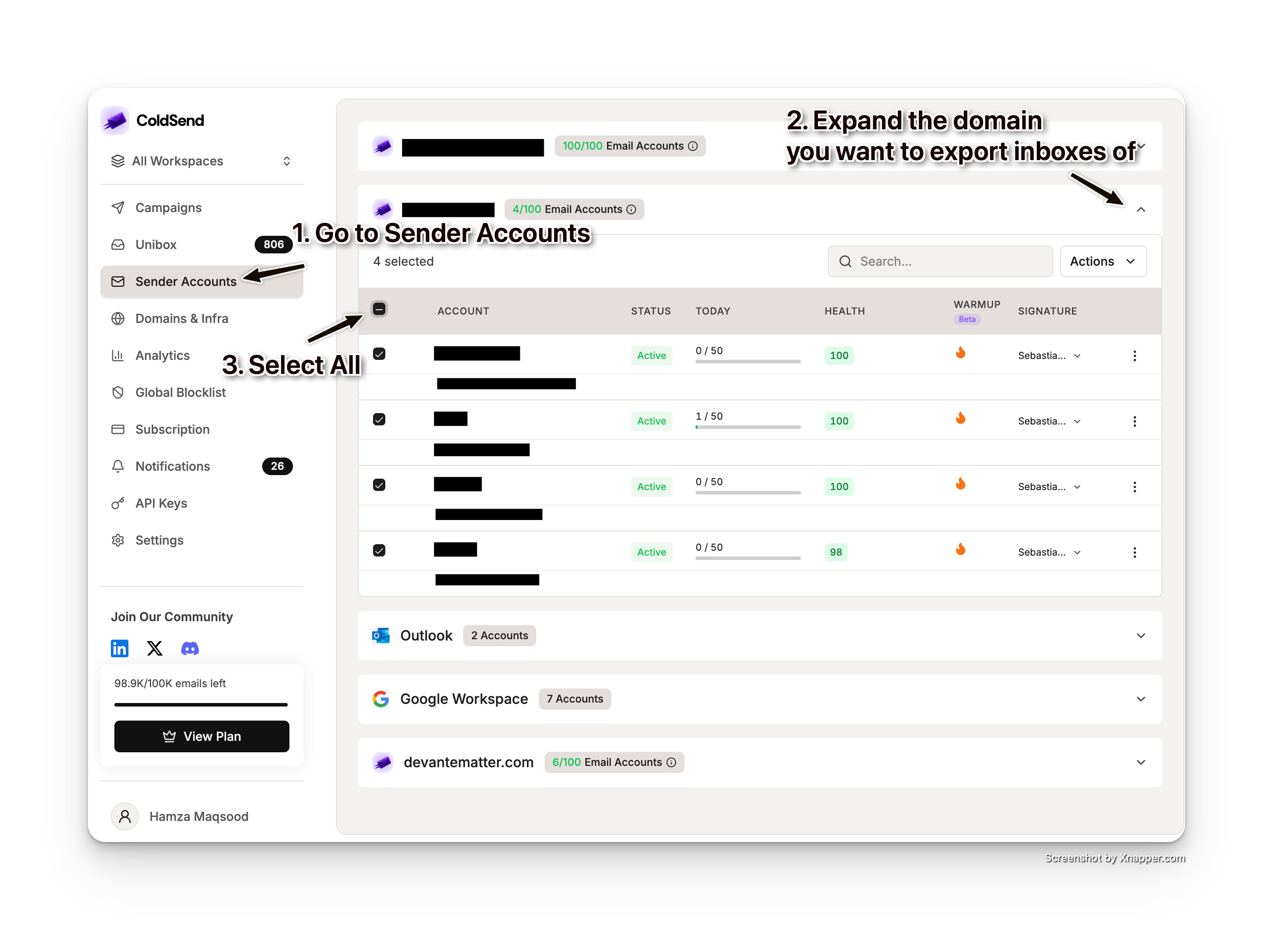 Select All Inboxes
Step 2: Export via Actions Menu
- With your inboxes selected, click the Actions button above the list.
- In the dropdown menu, click Export.
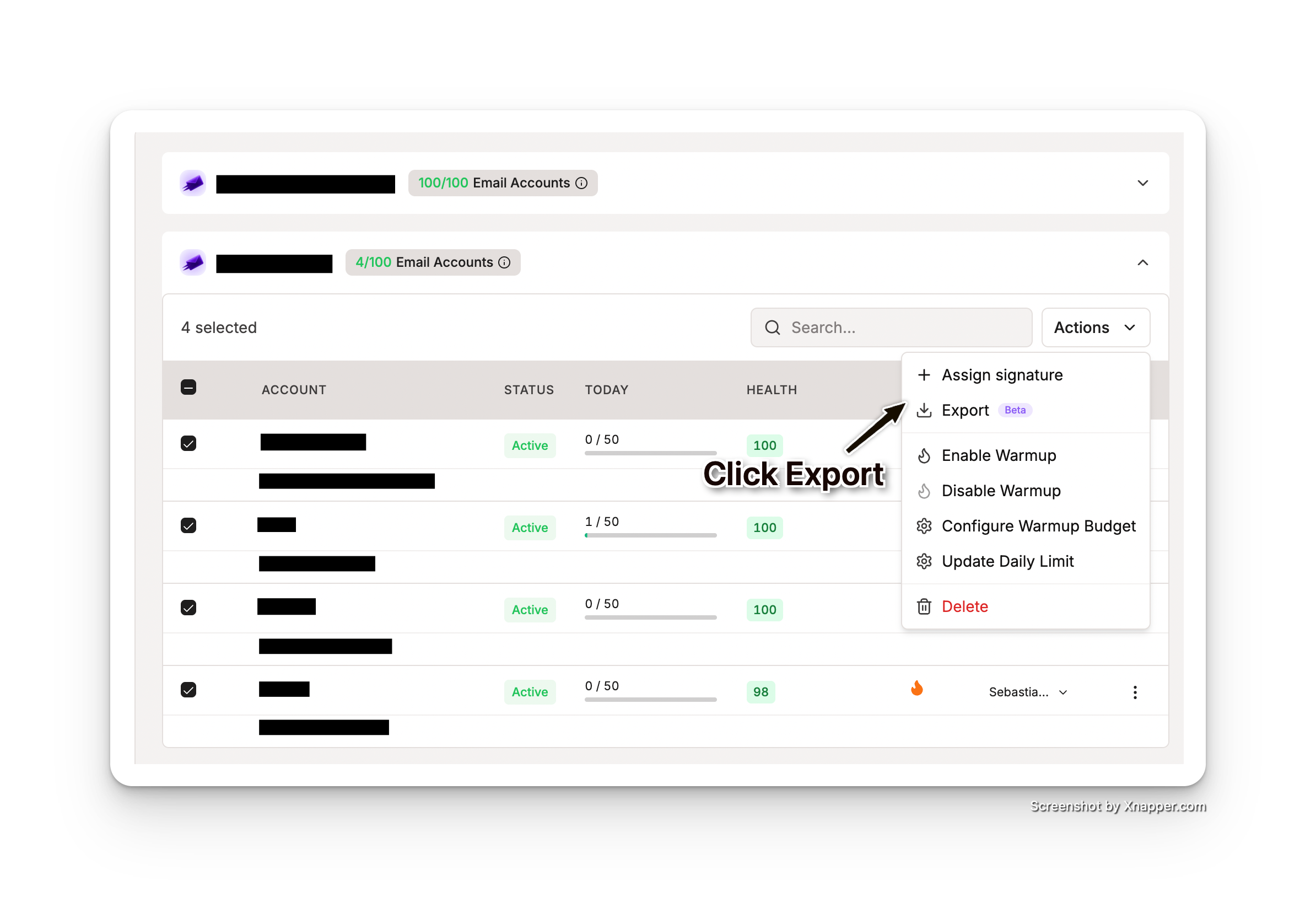 Actions Export Dropdown
- A dialog will appear with export options.
Step 3: Choose Smartlead Export Format
- In the export dialog, click Smartlead to generate a CSV formatted for Smartlead's bulk import.
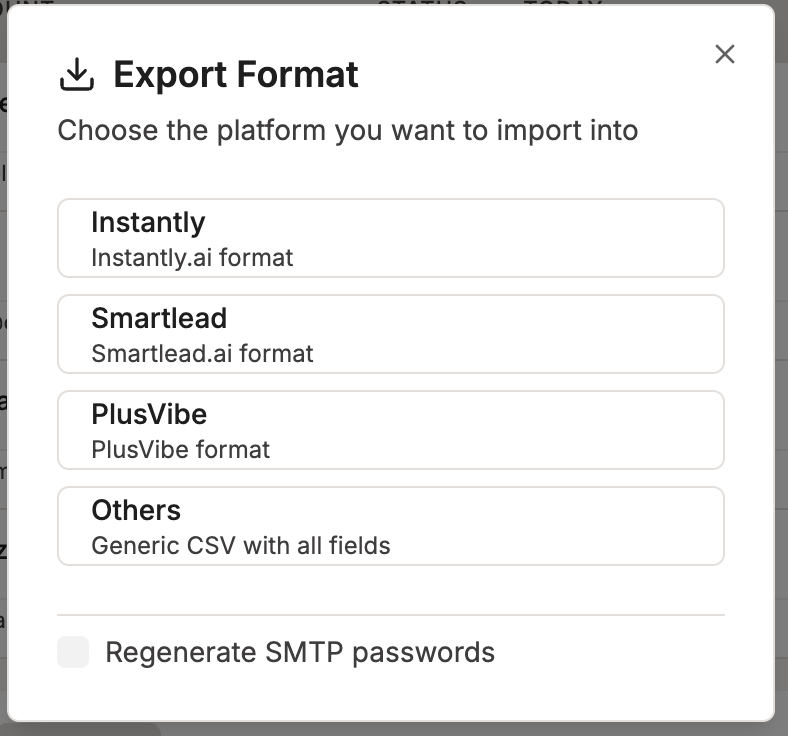 Export Dialog - Smartlead
SMTP Password Reset Option
The dialog includes an option to reset SMTP passwords for the exported inboxes:
- Check this option if you're exporting for the first time — ColdSend will generate fresh SMTP passwords for the selected inboxes and include them in the CSV.
- Leave it unchecked if you've already exported these inboxes before and don't want to invalidate your existing passwords.
Warning: Checking the reset option will invalidate any previously generated SMTP passwords for the selected inboxes. If you're actively using those passwords on other platforms, leave it unchecked.
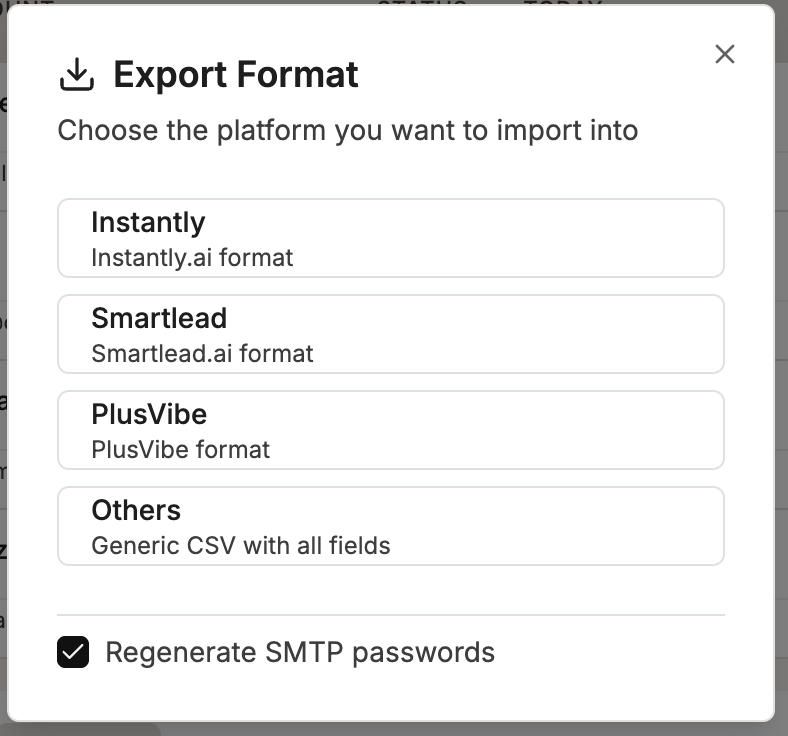 SMTP Password Reset Option
- The CSV file will download automatically. It contains the following columns:
Step 4: Import into Smartlead
- Log into your Smartlead account.
- In the left sidebar, go to Email Accounts.
- Click the Add button.
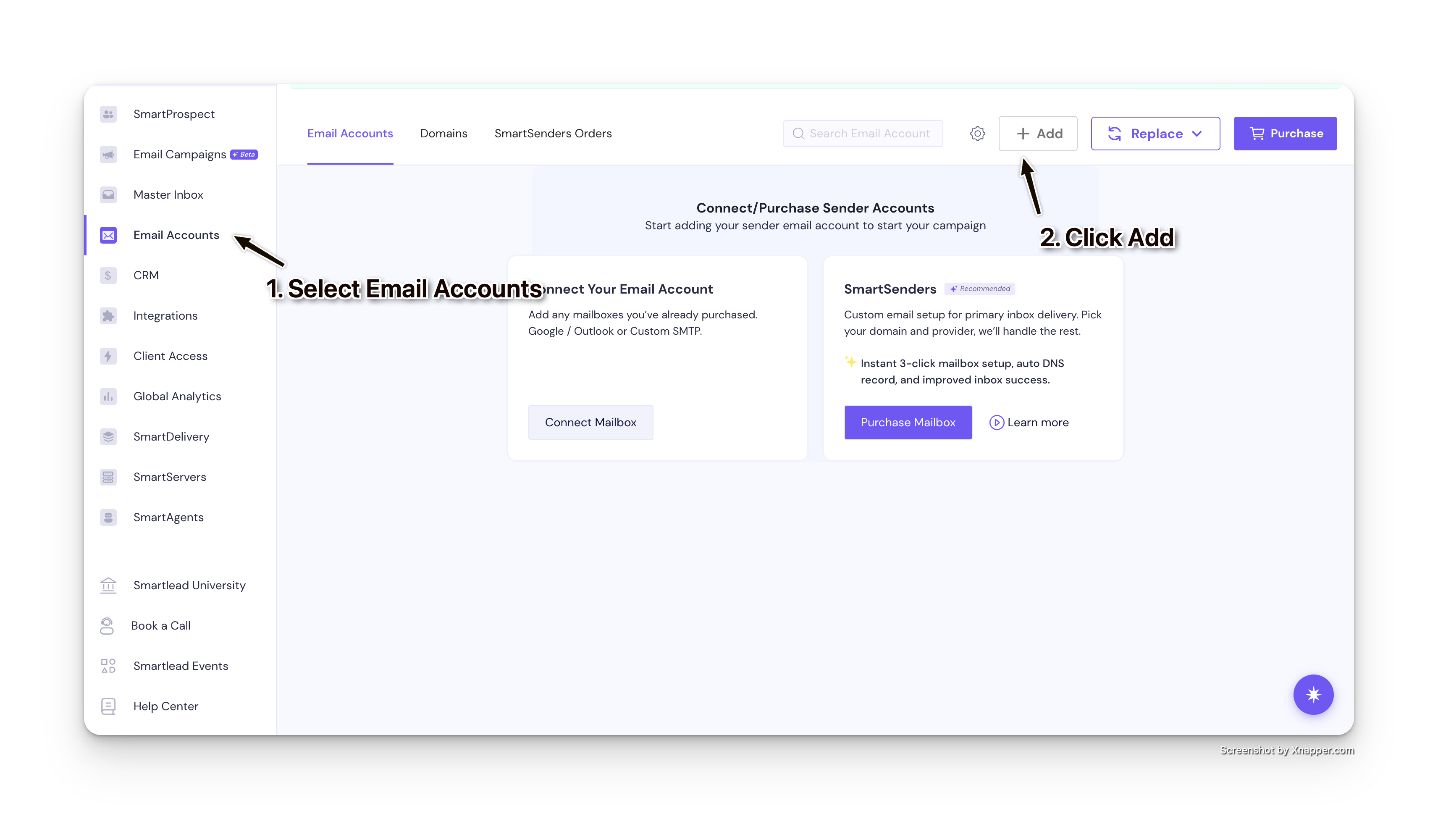 Smartlead Email Accounts - Add
- In the Bulk Email Addition section, click Choose File.
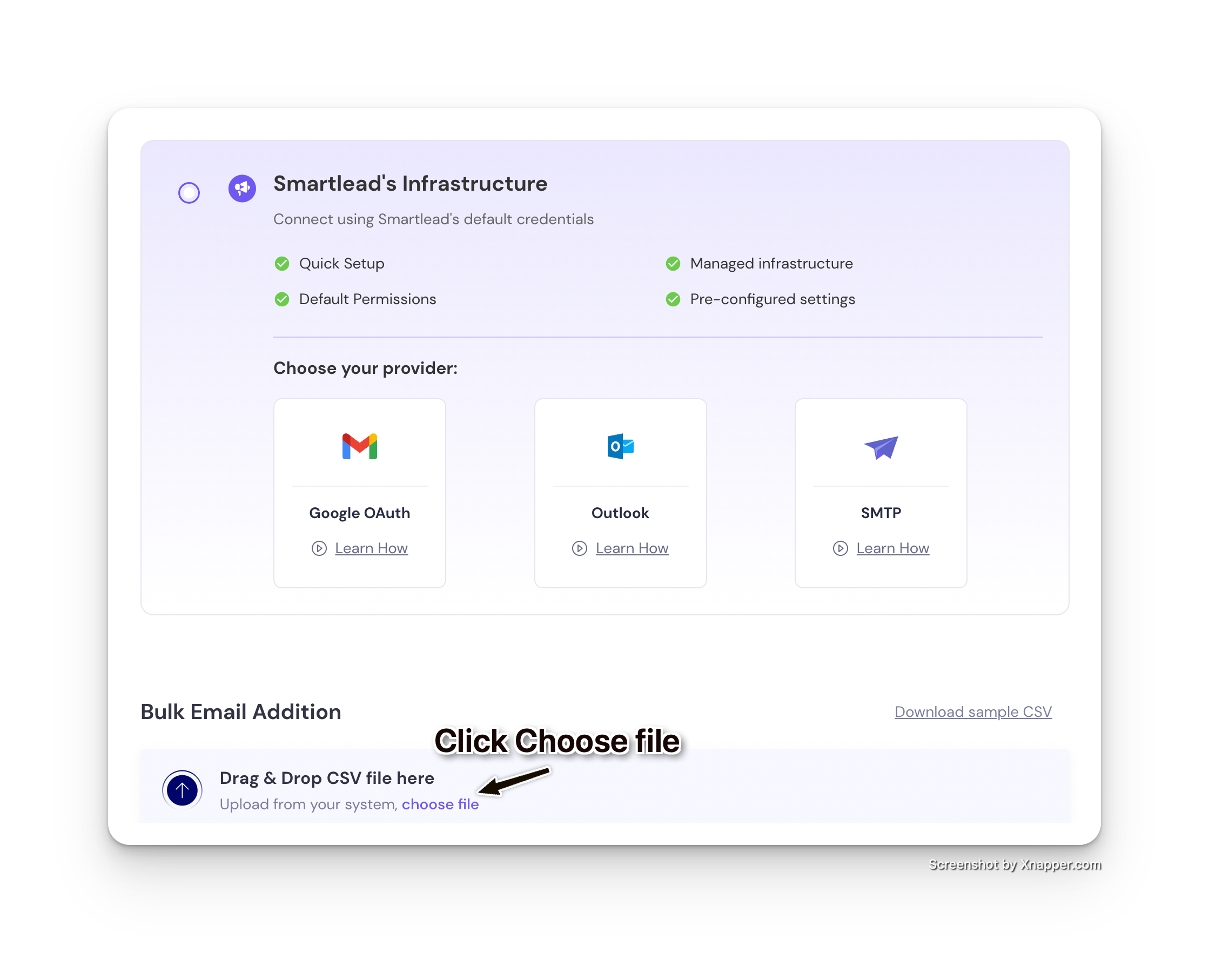 Smartlead Bulk Email Addition
- Select the CSV file you downloaded from ColdSend.
- Click Upload Now.
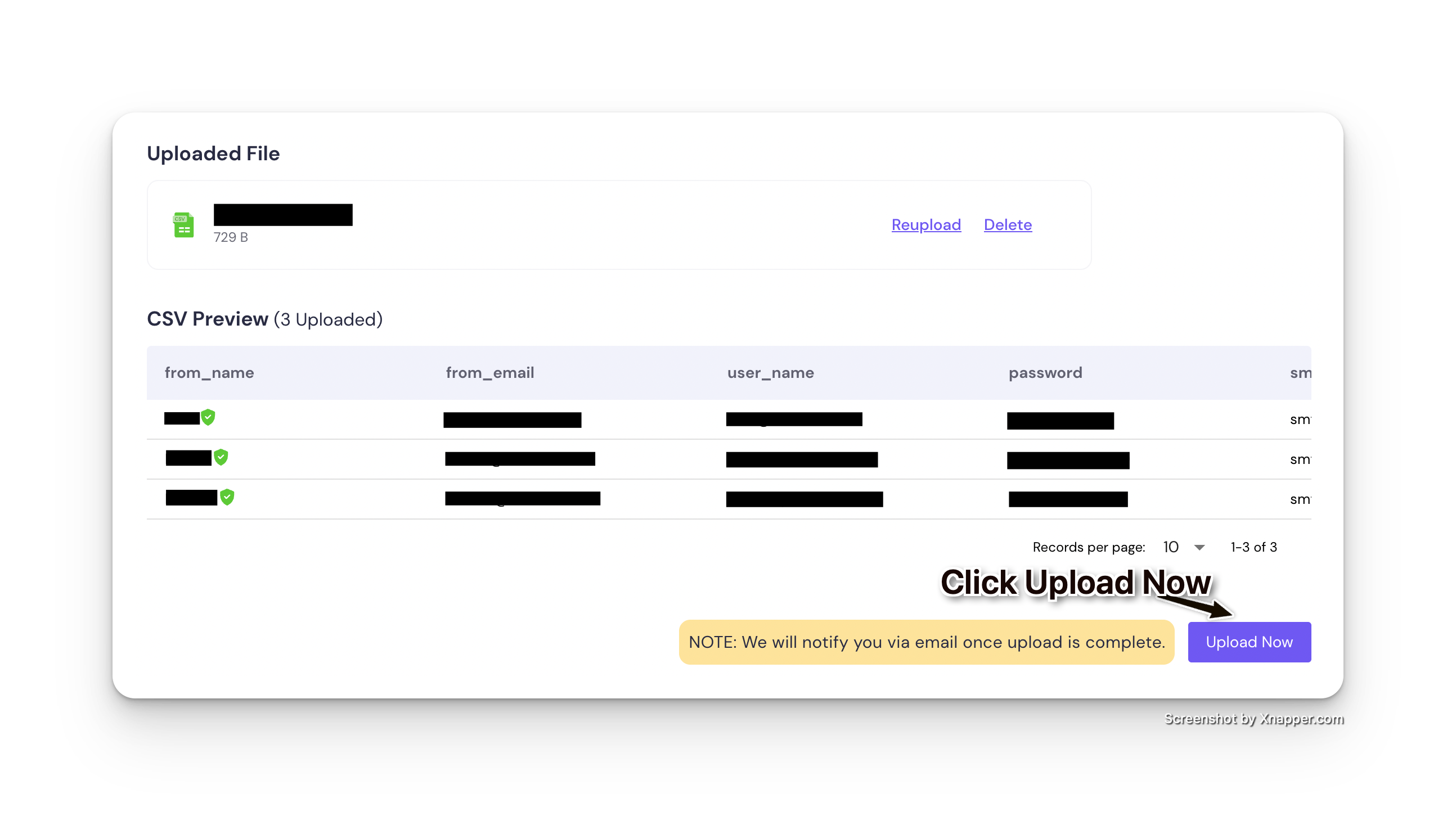 Smartlead Upload Now
- Smartlead will process the CSV and add each inbox to your Email Accounts list. Monitor the import progress — successfully connected accounts will appear in your Email Accounts dashboard.
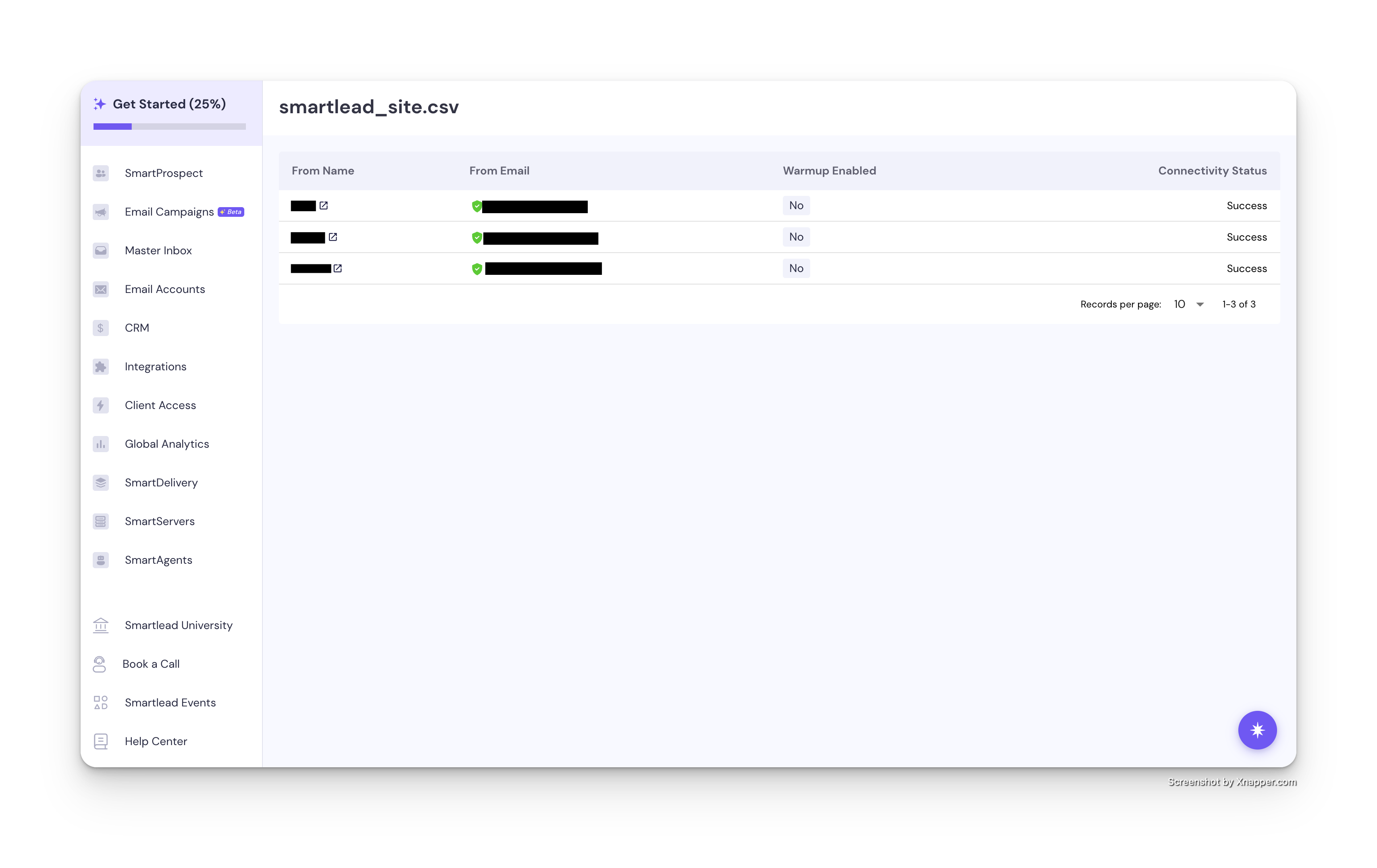 Smartlead Import Complete
Troubleshooting
Accounts Already Connected
If Smartlead reports that one or more email accounts are already connected, it means those inboxes exist in your Smartlead account.
How to fix:
- Go to Email Accounts in Smartlead.
- Find the accounts that are already connected.
- Remove them from Smartlead first, or skip them during import.
- Re-run the bulk import with an updated CSV that excludes already-connected accounts.
Validation or Format Errors
If Smartlead reports a validation error, it typically means there's a data issue with one or more rows in the CSV.
How to fix:
- Contact ColdSend support at support@coldsend.pro or join our Discord server with the error details and your CSV file.
- Common causes include malformed email addresses, missing required fields, or incompatible SMTP/IMAP settings.
SMTP/IMAP Connection Failed for Specific Inboxes
- Verify the inbox is still active and connected in ColdSend
- Ensure the SMTP/IMAP credentials in the CSV haven't been invalidated by a password reset
- Try exporting again with the reset SMTP passwords option checked
Some Inboxes Import Successfully but Others Fail
- Check the CSV for any rows with blank or incomplete fields
- Ensure the affected inboxes have valid display names (used for First Name / Last Name)
- Try importing the failed inboxes individually using Smartlead's single-account SMTP setup
FAQs
Do I need to reset SMTP passwords every time I export?
No. Only reset passwords if it's your first export or if you specifically need fresh credentials. If you've already imported these inboxes into Smartlead (or another platform) using the current passwords, leave the reset option unchecked to avoid breaking existing connections.
Can I export only some inboxes instead of all?
Yes. Instead of using the select-all checkbox, manually check only the inboxes you want to export before clicking Actions → Export.
Will my ColdSend campaigns be affected after exporting?
No. Exporting inboxes is a read-only operation. Your ColdSend campaigns, sending history, and inbox connections remain unaffected.
Can I use the same inboxes on both ColdSend and Smartlead simultaneously?
Yes. The exported inboxes can be connected on both platforms at the same time. However, be mindful of daily sending limits — both platforms will send emails independently, so the combined volume may exceed your mailbox provider's limits.
What if I add more inboxes to ColdSend later?
You can export again at any time. Use the select-all checkbox to export the full updated list, or select only the new inboxes. If you've previously exported without resetting passwords, leave the reset option unchecked to preserve existing credentials.
Does the CSV include campaign data or lead information?
No. The export only includes inbox connection details (SMTP/IMAP credentials, daily limits, and warmup settings). Campaign data, leads, and sequences are not included.
Can I export to a different platform besides Smartlead?
The export dialog may offer other platform-specific formats. If Smartlead isn't your target, check the other options in the export dialog or contact ColdSend support for custom export formats.

